Import Collection Notes
Administration → Tools → Import Collection Notes loads customer collection notes from a spreadsheet into the notes shown on the A/R aging report. Collection history that has been kept outside PULSE Dashboard — in a spreadsheet, or in a system you are moving off — does not have to be re-keyed.
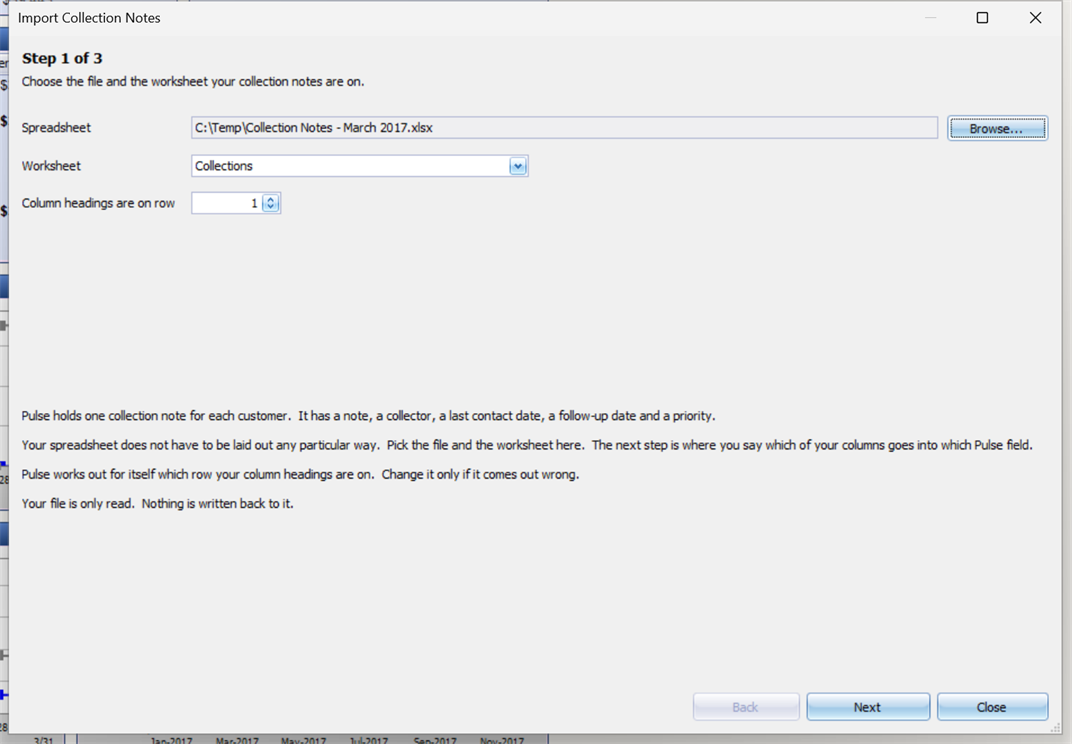
Step 1 — the file and the worksheet
Pick the file and the worksheet the notes are on. PULSE Dashboard works out for itself which row your column headings are on, and only reads the file — nothing is written back to it.
Step 2 — your spreadsheet does not have to match a template
The import asks which of your columns goes into which PULSE Dashboard field, so a spreadsheet can be imported in whatever layout it already has. Map Columns For Me fills the list in by reading your headings; change anything it gets wrong.
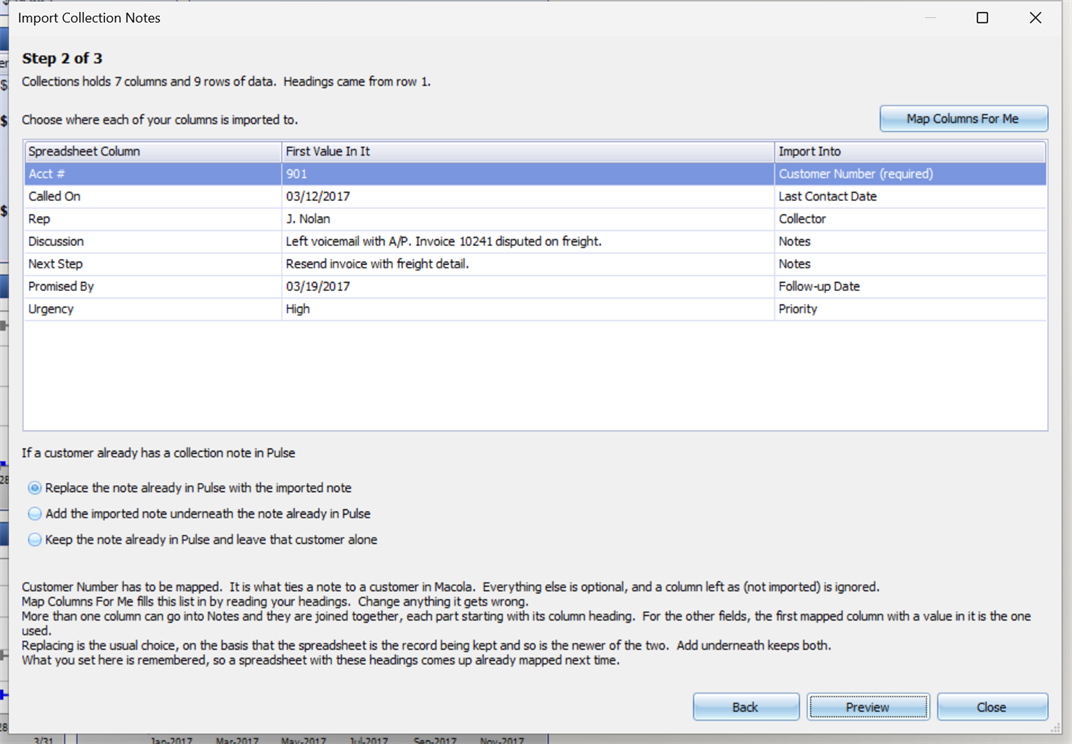
More than one column can go into Notes, and they are joined together with each part labeled by its own column heading — so a Discussion column and a Next Step column become one readable note. Only Customer Number has to be mapped; a column left as (not imported) is ignored.
Where a customer already has a note, you choose whether to replace it, add underneath it, or leave that customer alone.
Your column choices are remembered per database and keyed on the column heading rather than its position. A later import of the same layout arrives already mapped, and a column that has moved is still recognized.
Step 3 — every row is checked before anything is written
Each row is matched against the customer master, and a full report of what will be imported — and what did not match — is shown for you to review. Nothing reaches the collection notes until you accept it.
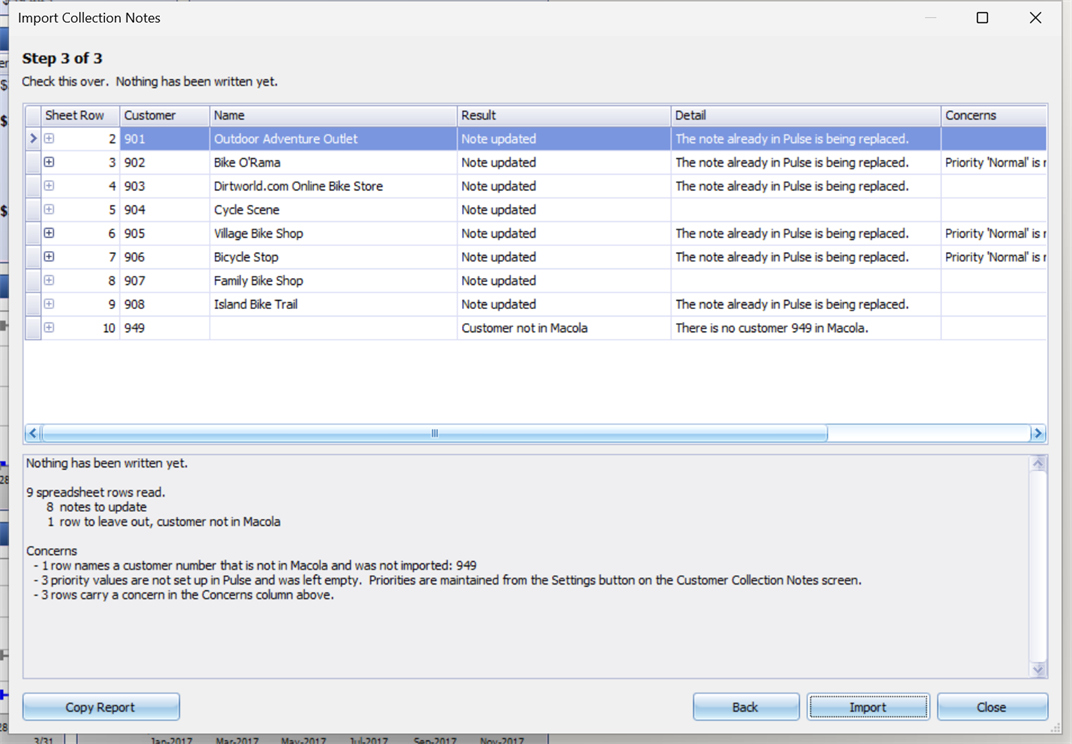
A customer number that is not in Macola® is reported and left out rather than guessed at, and the summary counts what will happen before you commit to it. Copy Report puts the whole thing on the clipboard.
File formats
The import reads .xlsx, .xlsm, .xls, .xlsb, the Excel template formats, .csv, tab-separated text and Excel XML 2003. Excel does not have to be installed on the workstation running the import.
On Macola® ES
A fix in this release corrects the customer number matching that kept collection notes off the A/R aging report on Macola® ES. See Compatibility & Upgrade for what happens to notes saved before the upgrade.